Creation of Template
- Pick twelve vocabulary words which you wish to target or to review.
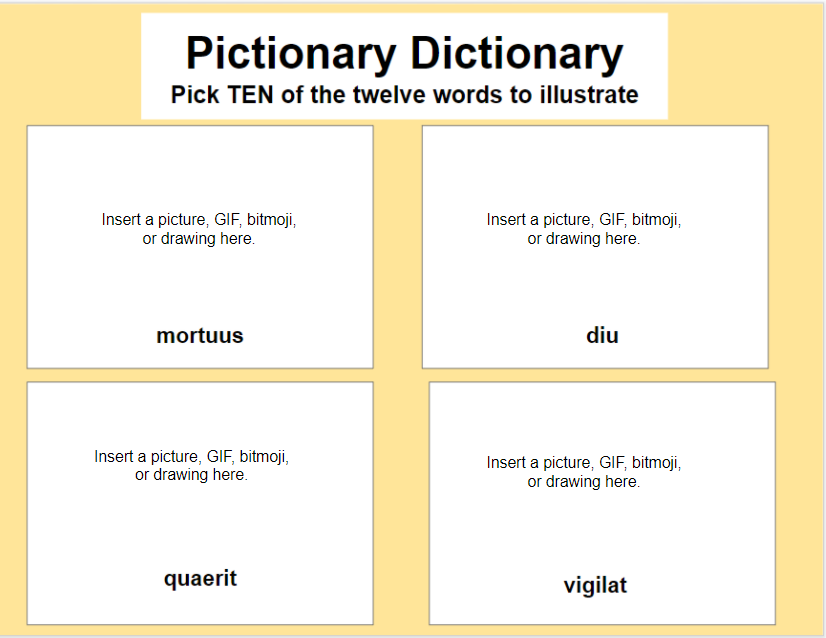
- Create a manipulative Google Slides template like below (see post here about creating manipulatives). I overlay the "Insert a picture, GIF, bitmoji, or drawing here" and not as part of the background template so that students can delete this. Below is an example of a template which I created based on words which students informed me that they "kind of knew/did not know" from last year


Assignment
- Students are to find digital images of TEN of twelve vocabulary words, whether it be pictures, GIFs, bitmojis, memes, or drawings, and to insert them on the template.
- I assign this on Google Classroom so that each student has a copy of the template to manipulate. As a result of using Google Classroom, they can also turn it in electronically.
Observations
- Although there is some time spent on creating the template on my end, I love the creativity of students in their choice of digital images. While many are just doing a Google image search of vocabulary words and then just cutting/pasting the first image they find, many are actually taking their time to personalize their images. From an instructional technology standpoint, personalization is a very high-level demonstration of critical thinking and creativity! Below are some examples where students created themes of images as a demonstration of personalization:


2. Allowing students to use digital images such as GIFs, memes, emojis, bitmojis, etc.,
gives students the opportunity to use tools with which they are familiar and to apply in
different ways.
